


Job Seeker User Manual
1. Account Registration
Getting Started!
You must have an account on this site before you can register as a Job Seeker or for the Farm Programme.
How to Get an Account?
You need to follow the Steps below.
Step 1: Sign Up
- Select Sign Up + > Job Seeker in the menu or click here.
- Complete the form with your Personal Details.
- Don't forget to complete the CAPTCHA.
Step 2: Verify Email
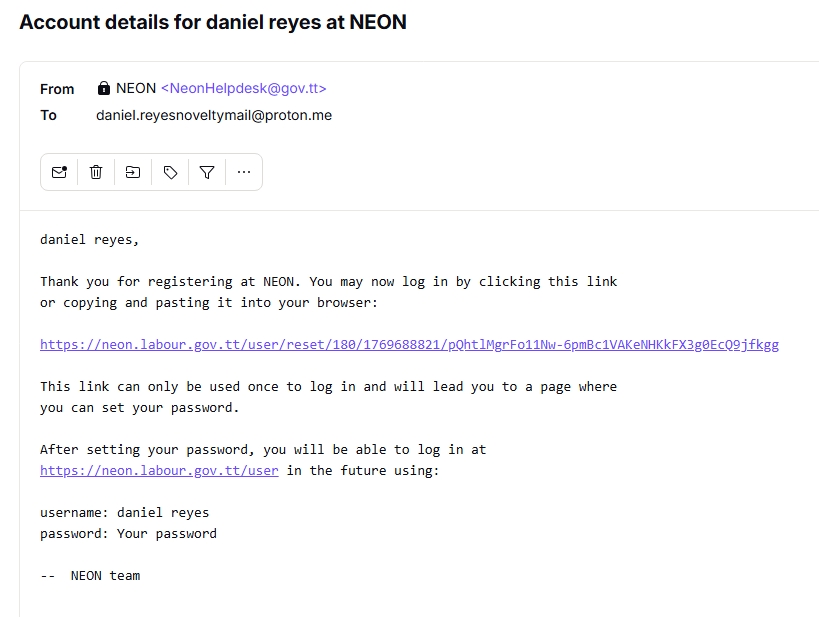
- After completion of step 1, you will be sent an email.
- Check your email for a login link, click here for an example.
Click the one-time login link and set a password.
Step 3: Finalise Profile
Upload appropriately named documents with Max size 5MB, in either JPG, PNG or PDF formatting, on Edit Account.
View Required Documents
Required Documents:
- Trinidad and Tobago Birth Certificate with Affidavit, where necessary
- Marriage Certificate with Deed Poll, where necessary
- Valid Trinidad and Tobago Identification - National ID and/or Passport and/or Driver's License
- Updated Résumé
- Two (2) signed Recommendation Letters not older than 6 months
- Academic Certificates
Step 4: Next Step
Now that you have completed your profile, you can login, and either :-
2. Job Seeker Registration
How to Register as a Job Seeker?
Ensure that you have registered for an account on this site. Log onto the site, where you need to follow the Steps below.
Step 1: Apply as a Job Seeker
- Select Job Seeker + > Job Seeker Profile, or you can click here.
- Complete the form with your Personal Details, and upload missing personal identification document(s).
- Click Next > Personal Information.
Step 2: Bio-Data Information
Now that you have completed the National Employment Service Registration, provide the required information where applicable :-
Résumé Information
- Upload the following with appropriately named documents with Max size 10 MB, in either JPG, JPEG, PNG or PDF formatting.
- Trinidad and Tobago Birth Certificate with Affidavit, where necessary.
- Marriage Certificate with Deed Poll, where necessary.
- Valid Trinidad and Tobago Identification - National ID and/or Passport and/or Driver's License.
- Upload an Updated Resume, if resume is outdated.
- Upload TWO (2) signed Recommendation Letters not older than 6 months.
Education Information
- ONLY enter the subjects that you have passed.
- Select if you have a Certificate(s) AND/OR have an additional skill(s).
- If you have either a Certificate or Additional Skill, click Add Another Record, and select.
- Click Next > Employment History and Preferred Roles.
Employment History/Preferred Roles
- Indicate if you have any Work Experience.
- If YES, indicate your past work job title, work category, employer, start date, and end date.
- If NO, state your Employment Preferences.
- Click Preview.
- Upload the following with appropriately named documents with Max size 10 MB, in either JPG, JPEG, PNG or PDF formatting.
Step 3: Finalise Profile
- Ensure that the form was completed and appropriate documents have been uploaded.
- Click Save.
Step 4: Next Step
- You will be contacted for an interview at one of our NES branches where you must bring your original documents (Not Copies).
- Now that you have completed your profile, you can login, and either :-
- Edit your Job Seeker Profile, AND/OR
Register for the Farm Programme.
3. Farm Programme Registration
How to Register for the Farm Programme?
Once your Job Seeker profile is active, you can apply.
What are the Requirements for the Farm Programme?
You must be of Age: 21+, have a Valid Trinidad and Tobago Identification - National ID, a Passport, and a Valid Driver's License.
Step 1: Apply
- Select Job Seeker + > Farm Programme Registration, or click here.
- Complete the form with your Personal Details and upload required documents.
- Click Next > Personal Information.
Step 2: Bio-Data Information
Provide required information:
Required Information
- Date of Birth
- Height (cm)
- Weight (lbs)
- Alias/AKA
- Social Media Handles
- Enter your marital status and dependants.
- Provide dependant details if applicable.
Education Information
- Enter only subjects you have passed.
- Add certificates or additional skills if applicable.
Employment History
- Indicate if you have work experience.
- Add employment details if applicable.
- Click Preview.
Step 3: Finalise Profile
- Ensure all information is complete.
- Click Save.
Step 4: Next Step
- We will call you for an interview at one of our Farm Programme branches, where you must bring your original documents (Not Copies).